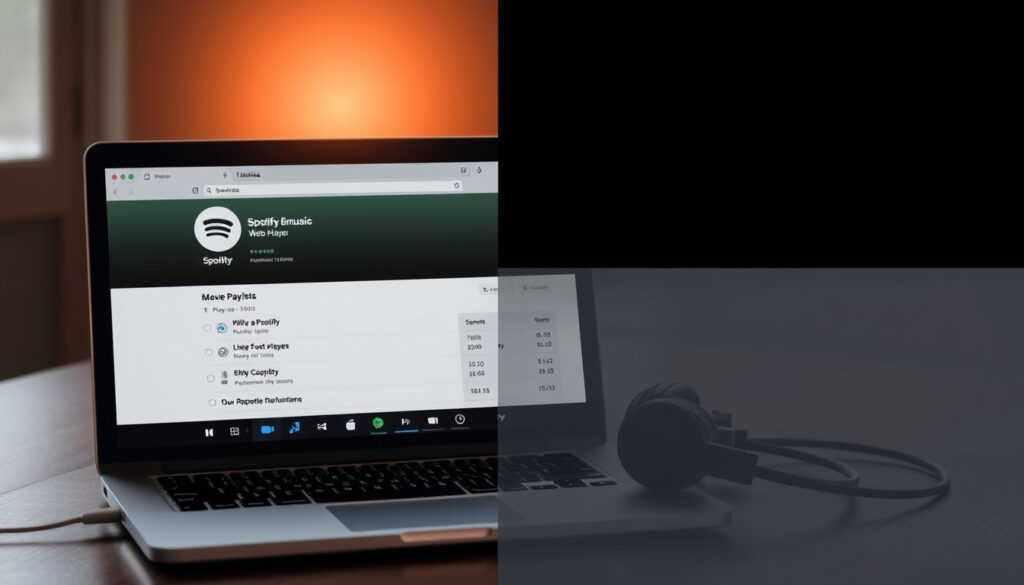
Spotify Web Player: Music for Everyone – Features & Limits
Anyone who’s tried to stream music on a locked-down work laptop or a school computer knows the frustration: no install permissions, no luck. The Spotify Web Player sidesteps that entirely – it runs straight in your browser, no download required. But that convenience comes with trade-offs. Here’s what you actually get (and what you lose) when you use the web player instead of the desktop app, with concrete numbers and workarounds for power users.
Monthly active users: 615 million (Q4 2024) ·
Total tracks: Over 100 million ·
Free tier skip limit: 6 skips per hour ·
Web player audio quality: Up to 256 kbps Ogg Vorbis ·
Offline playback: Not available on web player ·
Countries available: 184
Quick snapshot
- Web player allows playlist creation and drag-and-drop since the 2021 redesign (Spotify Newsroom (official company blog))
- Free tier caps skips at 6 per hour (Spotify Support (official help center))
- No offline playback on web player (Sharingful (Spotify comparison guide))
- Works on Chrome, Firefox, Safari, Edge (Spotify Support)
- Exact audio codec used in web player (likely Ogg Vorbis but not officially confirmed)
- Whether future updates will add offline support
- Exact counting method for the 1,000-stream rule on web player
- March 25, 2021: Spotify introduces unified redesign across desktop app and web player (Spotify Newsroom)
- 2008: Spotify launches as a desktop-only application (Spotify Newsroom (company info))
- No announced plans for offline downloads on web player
- Continued alignment of web and desktop feature sets expected
| Attribute | Value |
|---|---|
| Release year | 2021 (beta), 2022 (full) |
| Supported browsers | Chrome, Firefox, Safari, Edge |
| Free tier | Ads, 6 skips/hour, shuffle only |
| Premium benefits | Unlimited skips, on-demand play, no ads |
| Offline playback | No |
| Max audio quality | 256 kbps (web), 320 kbps (desktop) |
How to make a collaborative playlist on Spotify web player?
Collaborative playlists let multiple users add, remove, and reorder tracks. The web player supports this feature just like the desktop app – here’s the exact workflow.
Step-by-step instructions for creating a collaborative playlist
- Open open.spotify.com and log in to your Spotify account.
- Click Create Playlist in the left sidebar (or right-click to create a new one).
- Give your playlist a name and description.
- Click the three-dot menu (•••) below the playlist name.
- Select Collaborative Playlist to enable collaboration.
- Share the link with friends – they need their own Spotify account to join.
Only the playlist creator can toggle collaboration on or off. Once enabled, all collaborators can add tracks and edit the list. This feature works identically on both web player and desktop app (Spotify Support (official help center)).
How to invite others via link
After making the playlist collaborative, tap the Share button and copy the invite link. Anyone with the link can open it in their own Spotify account and start contributing.
Managing permissions and removing collaborators
There’s no per-user permission control – the playlist is either fully collaborative or not. To remove a collaborator, you’d need to delete their added tracks and disable collaboration, then re-share only with trusted users.
Does Spotify web player have all songs?
Yes – the web player draws from the same global catalog as the desktop app. Over 100 million tracks are available, covering virtually every mainstream artist and label (Spotify Newsroom (company info)).
Catalog size and availability on web player
The web player does not have a separate catalog. If a track exists on Spotify, you can find and play it via the browser interface. The only limitation is regional licensing: some songs may be blocked in certain countries, affecting both web and desktop equally.
Differences between web player and app catalog
None. Catalog parity is a core design principle – the web player is simply a different frontend to the same backend. That means exclusive releases, podcasts, and user-uploaded local files behave identically (local files cannot be played on web).
Regional restrictions and missing content
Due to licensing agreements, a small percentage of tracks are geo-blocked. For example, some Japanese labels restrict streaming outside Japan. This applies to all Spotify platforms, not just the web player. If you encounter a grayed-out song, it’s a regional issue, not a web player limitation.
Does the Spotify web player have unlimited skips?
Not if you’re on the free tier. The skip limit is a well-known frustration – here’s the exact policy and how Premium changes it.
Skip limit for free accounts: 6 skips per hour
Free users can skip up to six tracks every 60 minutes. Once you hit that limit, you’re stuck listening to whatever plays next (or the same song on repeat). This rule is documented on Spotify Support and applies identically on both web player and mobile free tiers.
How to increase skips with Premium
Upgrading to Spotify Premium removes the skip cap entirely – you can skip as many times as you like, on any platform. Premium also removes ads and enables on-demand playback (instead of shuffle-only on free).
Workarounds and third-party tools
Some users resort to browser extensions that simulate skip requests, but these violate Spotify’s terms of service and can lead to account suspension. The only reliable workaround is a Premium subscription.
Free users get 6 skips per hour – roughly one every ten minutes. For casual listening that’s manageable, but if you’re a heavy skipper, Premium is the only legitimate escape.
What are the benefits of Spotify Web Player?
The web player’s biggest advantage is zero installation. That makes it ideal for shared, locked-down, or low-storage devices. Let’s break down the concrete benefits.
No installation required
Open open.spotify.com in any modern browser – Chrome, Firefox, Safari, Edge – and you’re in. No download, no admin rights, no disk space consumed (Sharingful (Spotify comparison guide)).
Works on any browser
Even if you’re on an older machine or a public computer, as long as the browser is reasonably modern (latest two versions), the web player works. This makes it accessible on school Chromebooks, library PCs, and company-issued laptops that disallow installs.
Same features as desktop app (except offline)
Since the March 2021 redesign, the web player offers playlist creation, drag-and-drop sorting, the library view, and search – all matching the desktop experience (Spotify Newsroom (official company blog)). The one gap: no offline downloads.
Accessible on school or work computers
IT restrictions often block software installs but not web browsers. The web player was designed specifically to serve these scenarios – it’s the only way to get Spotify on many restricted networks (YouTube – Spotify Web Player Pros and Cons (user-experience overview)).
Each benefit has a flip side: no installation means no offline mode, and running in a browser can eat more RAM than a native app on low-spec machines.
Why is the Spotify Web Player better than the app?
“Better” depends entirely on your situation. For some users, the web player is the smarter choice. Let’s compare the two side by side.
Cross-platform accessibility
The web player runs on any OS – Windows, macOS, Linux – without needing a separate app. The desktop app is limited to Windows and macOS (plus the Microsoft Store version).
Lower resource usage
Contrary to intuition, the web player can be lighter on system resources than the desktop app if you’re only using basic features. However, heavy browsing (many tabs) can increase memory consumption on the web side. A 2021 analysis by Sharingful noted that the desktop app tends to be more stable on low-RAM machines because it doesn’t share resources with other browser tabs.
No updates needed
Spotify pushes updates to the web player automatically every time you load the page. The desktop app requires manual updates, though it usually updates in the background.
Limitations: no offline mode, lower audio quality on some browsers
Offline playback is completely absent on web. Audio quality also caps at 256 kbps for Premium users (versus 320 kbps on desktop) and at 128 kbps for free users (Spotify Support).
Six key differences, one clear pattern: the web player sacrifices offline and peak quality for convenience and cross-platform access.
| Feature | Web Player | Desktop App |
|---|---|---|
| Installation required | No | Yes |
| Offline playback | No | Yes |
| Audio quality (Premium) | Up to 256 kbps | Up to 320 kbps |
| Audio quality (Free) | Up to 128 kbps | Up to 128 kbps |
| Keyboard shortcuts | Limited | Full OS integration |
| Resource impact | Shared with browser tabs | Dedicated process |
| Smart device control | Not available | Available via Connect |
| Library sorting | Basic | Advanced (Recently Played, Queue editing) |
Upsides
- No installation – works on any browser
- Same catalog as desktop app
- Collaborative playlists fully supported
- Automatic updates
- Ideal for restricted networks
Downsides
- No offline listening
- Lower audio quality (256 vs 320 kbps)
- More RAM consumption in some browsers
- No keyboard shortcuts for power users
- Can’t sync to smart speakers or headphones directly
Steps to get the most out of Spotify Web Player
Quick start guide
- Go to open.spotify.com and log in.
- Browse or search for music using the embedded search bar.
- Click any song to play – you’ll hear a preview first on the free tier.
- Create playlists and drag tracks to reorder them.
- Use the volume slider at the bottom right of the player.
Power user tips
- Use keyboard shortcuts: Space to play/pause, → to skip (works on most browsers).
- Bookmark the “Your Library” page for quick access to saved music.
- For better audio, connect to a Wi-Fi network instead of cellular (web player consumes more data).
- Close unnecessary browser tabs to free up RAM for smoother playback.
What the experts say
“The web player gives you access to millions of songs and podcasts directly in your browser – no installation needed.”
— Spotify Help Article
“Free users can skip up to six tracks per hour. Premium subscribers get unlimited skips.”
— Spotify Support
What’s confirmed vs what’s still unclear
Confirmed facts
- Spotify web player exists as a browser-based service.
- Free tier limits skips to 6 per hour.
- No offline playback on web player.
- Collaborative playlists can be created from web player.
- Redesign aligned web and desktop in March 2021.
What’s unclear
- Exact audio codec used in web player (likely Ogg Vorbis but not officially confirmed).
- Whether future updates will add offline support.
- Exact counting method for the 1,000-stream rule on web player.
Summary
The Spotify Web Player is a genuinely useful tool for anyone stuck on a restricted computer or who wants instant access without downloading software. But its limitations – especially no offline mode and capped audio quality – make it a second choice for serious listeners. For users on school or work devices, the web player is the only option, and it handles most core features well. The trade-off is clear: convenience over control. If you can install the desktop app, you’ll get offline playback and better sound. If you can’t, the web player is ready in seconds.
For a detailed walkthrough of browser-based streaming, check out this comprehensive Spotify Web Player guide that covers everything from collaborative playlists to skip limits.
Frequently asked questions
Can I use Spotify Web Player on my phone?
Yes. Open open.spotify.com in your mobile browser. The interface is touch-friendly, but the dedicated mobile app generally offers a better experience and supports offline downloads.
How do I log out of Spotify Web Player?
Click your profile icon (top-right), then select Log out. You can also clear your browser cookies to force a logout.
Does Spotify Web Player have ads?
Yes, if you’re on the free tier. You’ll hear audio ads between songs and see display ads. Premium removes all ads on the web player as well.
How to fix Spotify Web Player not loading?
Try these steps: refresh the page, clear browser cache and cookies, disable browser extensions, update your browser to the latest version, or try a different supported browser (Chrome, Firefox, Safari, Edge). If the issue persists, check the Spotify Support page for known outages.
What browsers are supported for Spotify Web Player?
Chrome, Firefox, Safari, and Edge. The web player works on the two most recent versions of each. Internet Explorer and older browsers are not supported.
Can I play local files on Spotify Web Player?
No. Local file playback is a desktop-app-only feature. The web player can only stream content from Spotify’s servers.
Is Spotify Web Player free?
Yes, anyone can use the web player with a free Spotify account. Premium features (unlimited skips, no ads, on-demand playback) require a paid subscription.
More related posts
 Things to Do in Rarotonga: Best Activities, Tours & Tips (2025)
 One Bowl and Plate: Hybrid Dining in Wellington
 Is a Pumpkin a Fruit or Vegetable? The Truth
 What Is the Best Wake-Up Routine? Science-Backed Routines
 Kāinga Ora Anti-Social Tenant Eviction: Rules & Process
 Outrageously Expensive Crossword Clue – Answer and Solutions
 How Exposed Am I? Legit NZ Government Tool Guide
 Upper Hutt City Council: Rates, Jobs, Councillors & Elections
